Test your Square integration
Test our Square integration by reading sample data to a test company
You can use the Square Sandbox integration to read test data from Square into Codat.
You'll need to:
- Set up a test companyCompany In Codat, a company represents your customer's business entity. Companies can have multiple connections to different data sources. in the Codat Portal.
- Generate a LinkLink The authorization flow that allows end users to connect their accounting, banking, or commerce platforms to your application via Codat. URL then connect your test companyCompany In Codat, a company represents your customer's business entity. Companies can have multiple connections to different data sources. to your Square app, using a Square Sandbox test account.
- Retrieve test data from Square.
Prerequisites
First, set up your Square integration.
- In Square Developer, make sure you've enabled Sandbox in your app's configuration settings.
- In Codat, make sure you've configured the Square Sandbox integration.
To retrieve and view commerce data from your test companyCompany In Codat, a company represents your customer's business entity. Companies can have multiple connections to different data sources., you need to add sample transactions to the Square Sandbox test account you want to use. For help with adding test transactions, see Sandbox Overview in the Square documentation.
Set up a test companyCompany In Codat, a company represents your customer's business entity. Companies can have multiple connections to different data sources.
In the Codat Portal:
- In the navigation bar, click Companies.
- Click New companyCompany In Codat, a company represents your customer's business entity. Companies can have multiple connections to different data sources..
- In the Add new companyCompany In Codat, a company represents your customer's business entity. Companies can have multiple connections to different data sources. dialog, enter a name for your test companyCompany In Codat, a company represents your customer's business entity. Companies can have multiple connections to different data sources., such as
square-test, then click Add. The LinkLink The authorization flow that allows end users to connect their accounting, banking, or commerce platforms to your application via Codat. URL for your test companyCompany In Codat, a company represents your customer's business entity. Companies can have multiple connections to different data sources. is displayed.
Keep the Companies page open in your browser.
Connect your test companyCompany In Codat, a company represents your customer's business entity. Companies can have multiple connections to different data sources. to your Square Sandbox test account
Test the authorization process that your customers will see when they connect their Square account in LinkLink The authorization flow that allows end users to connect their accounting, banking, or commerce platforms to your application via Codat..
-
Sign in to Square Developer.
-
Click Account > Developer Dashboard to view the Applications page.
-
Under Sandbox test accounts, open the Default Test Account, or another test account, to open the Sandbox seller dashboard. Keep this page open in your browser or authorization to the Sandbox account will fail in LinkLink The authorization flow that allows end users to connect their accounting, banking, or commerce platforms to your application via Codat..
-
In the Codat Portal, click Companies in the navigation bar.
-
Hover over your test companyCompany In Codat, a company represents your customer's business entity. Companies can have multiple connections to different data sources., then click LinkLink The authorization flow that allows end users to connect their accounting, banking, or commerce platforms to your application via Codat. URL. The Onboarding dialog is displayed.
-
Copy the LinkLink The authorization flow that allows end users to connect their accounting, banking, or commerce platforms to your application via Codat. URL and paste it into a new browser tab. This loads Hosted Link.
-
Complete the steps in LinkLink The authorization flow that allows end users to connect their accounting, banking, or commerce platforms to your application via Codat.; the exact steps shown depend on your LinkLink The authorization flow that allows end users to connect their accounting, banking, or commerce platforms to your application via Codat. settings. You'll need to:
-
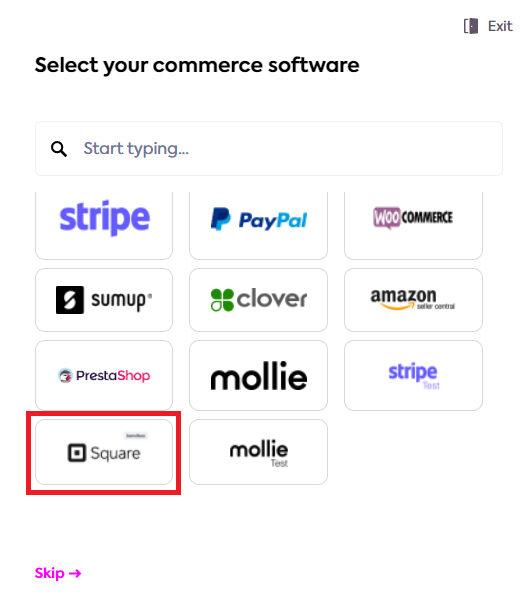
Select Square Sandbox as the commerce software to connect to.
-
Authorize access to the listed data types.
-
The ConnectionConnection A link between a Codat company and a data source (like an accounting platform). Each connection represents authorized access to pull or push data from that platform. Successful page in LinkLink The authorization flow that allows end users to connect their accounting, banking, or commerce platforms to your application via Codat. is displayed with the message: "You have connected Square Sandbox."
-
Complete the LinkLink The authorization flow that allows end users to connect their accounting, banking, or commerce platforms to your application via Codat. flow, then click Finish.
Retrieve test commerce data
Make sure that test commerce data from Square is read successfully into Codat.
In the Codat Portal:
-
In the navigation bar, click Companies.
-
Click the name of your test companyCompany In Codat, a company represents your customer's business entity. Companies can have multiple connections to different data sources. to view the companyCompany In Codat, a company represents your customer's business entity. Companies can have multiple connections to different data sources.'s data.
-
Optionally, click Read history to check the progress of the initial syncSync The process of fetching the latest data from a connected data source. Syncs can be triggered manually or run automatically on a schedule. (if configured in your syncSync The process of fetching the latest data from a connected data source. Syncs can be triggered manually or run automatically on a schedule. settings). You can also click Refresh data.
-
Click Data > Commerce tab.
-
Use the tabs to view test data that was read from Square. For example, click Products or Orders.
Test data is only available for supported data types for which test data exists in Square.